Customer tagged as VIP
VIP
A vase product
Top-selling
Customer tagged as at risk of churn
Risk of churn

Tag products easily with AI

Skip the busywork: AI keeps every Shopify tag in order.

AI icon
Run
Thank you! Your submission has been received!
Oops! Something went wrong while submitting the form.

Suggest tags for

Product image- Green ceramic mug

Top selling products last 30 days

Top 10% CLV customers

Most likely to buy

Create new task

AI icon

Unlock effortless tagging experience

AI-assisted filtering

Find any customer or product. Just ask.

  • Describe who or what you are looking for, and AI instantly build the filters.
  • Effortlessly create dynamic lists for your audience and inventory. No code required.
  • Manual mode available. Jump in when you need it!
Explore now
Effortlessly find customers and products using FilterTag AI
AI product tagging icon

AI product tagging,
your way.

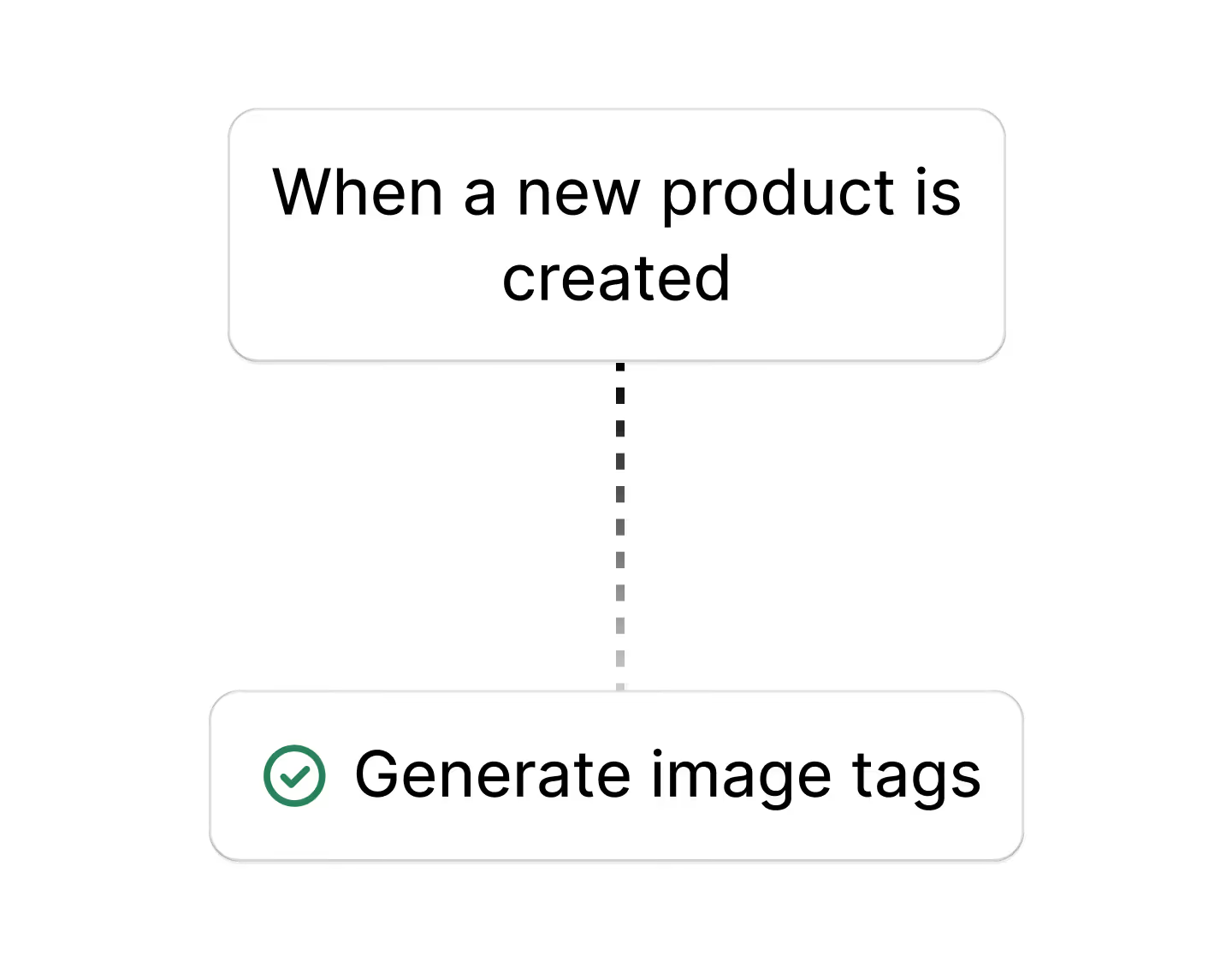
  • Manual tagging slows you down. Use FilterTag AI to generate attribute tags in one click
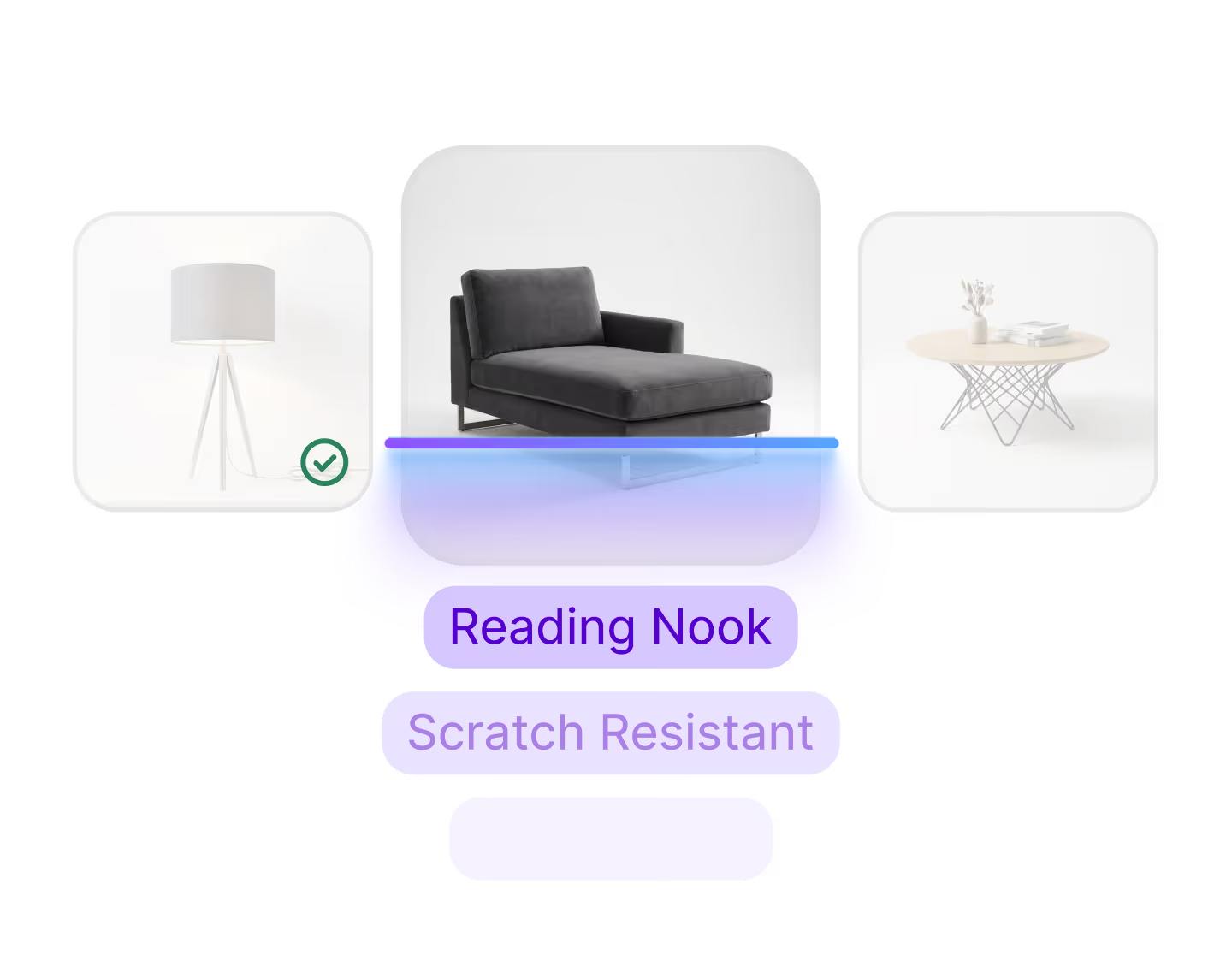
  • Instantly add descriptive tags based on what AI sees in your product photos
  • Review & tweak suggestions in seconds
Get AI-suggested tags
Generate product tags with one click.
Advanced filters icon

100+ powerful filters without the complexity

  • Target the right customers with multi-criteria advanced filters.
  • Automatic daily metric updates like CLV, recency, and more.
  • 50+ ready-to-use templates for precise tagging.
Try filters and templates
Target the right customers with multi-critiria advanced filters
Tag past and future customers -- no hidden costs

Easily tag historical data

  • Tag your entire data base, historical and future customers & products — No hidden fees.
  • Review and keep track of your usage with automated daily logs.
  • Your tags stay fresh daily—No more manual updates.
Try now
Keep your tags up-to-date and track your usage with daily log
Built for Shopify

Built for Shopify,
No extra setup needed

FilterTag works directly inside your Shopify admin—no coding, no hassle. Tag customers and products from the same side panel.

Install for free
FilterTag works directly inside your Shopify admin

See it in action

Tresl Segments is a Shopify Plus certified partner.

Shopify Plus Certified

Tresl, the team behind FilterTag, is proud to be an official Shopify Plus Certified App Partner.

— Trusted by hundreds of Shopify Plus brands worldwide.

Pricing

Starter

$9

Billed monthly

500 tags/mo
Generate attribute tags with 1 click
AI tags from product images
On-brand tag formatting
Tag all your inventory
3-day free trial available

Basic

$29

Billed monthly

5,000 tags/mo
All features included

Advanced

$59

Billed monthly

50,000 tags/mo
All features included
Need more tags? Contact team@tresl.co

Advanced

$59

Billed monthly

50,000 tags/mo
Generate on-brand AI product tags
Tag products based on performance
Tag customers with RFM, CLV, and 100+ advanced filters
Tag historical data

Plus

$149

Billed monthly

200,000 tags/mo
Generate on-brand AI product tags
Tag products based on performance
Tag customers with RFM, CLV, and 100+ advanced filters
Tag historical data
Need more usage? Contact team@tresl.co

Install

Frequently asked questions

What is FilterTag?
icon image
FilterTag is a simple-yet-powerful Shopify app that uses AI to tag your products—no spreadsheets or code. Install it once and let FilterTag keep your store data perfectly organized while you focus on growth.
How long does the set up take?
icon image
Once you install FilterTag, you can start creating tasks immediately. However, our system begins ingesting your store data in the background—which means some features like AI-assisted filtering, advanced filters, and previews will be temporarily unavailable. Any tasks you create will join a queue and start processing once data ingestion is complete. This process typically takes 8-48 hours, depending on your store’s size.
How does AI customer tagging work?
icon image
Our built-in AI quickly understands your store’s data and makes it easy to segment customers using advanced filters—like RFM (Recency, Frequency, Monetary value), Customer Lifetime Value (CLV), lifecycle stages, and order history (e.g., discount code usage, product purchase history). Simply describe the customers you want to target, even in everyday language, and let FilterTag take care of the rest.
How does AI product tagging work?
icon image
We break it down into two parts:

1.Tag based on product attributes
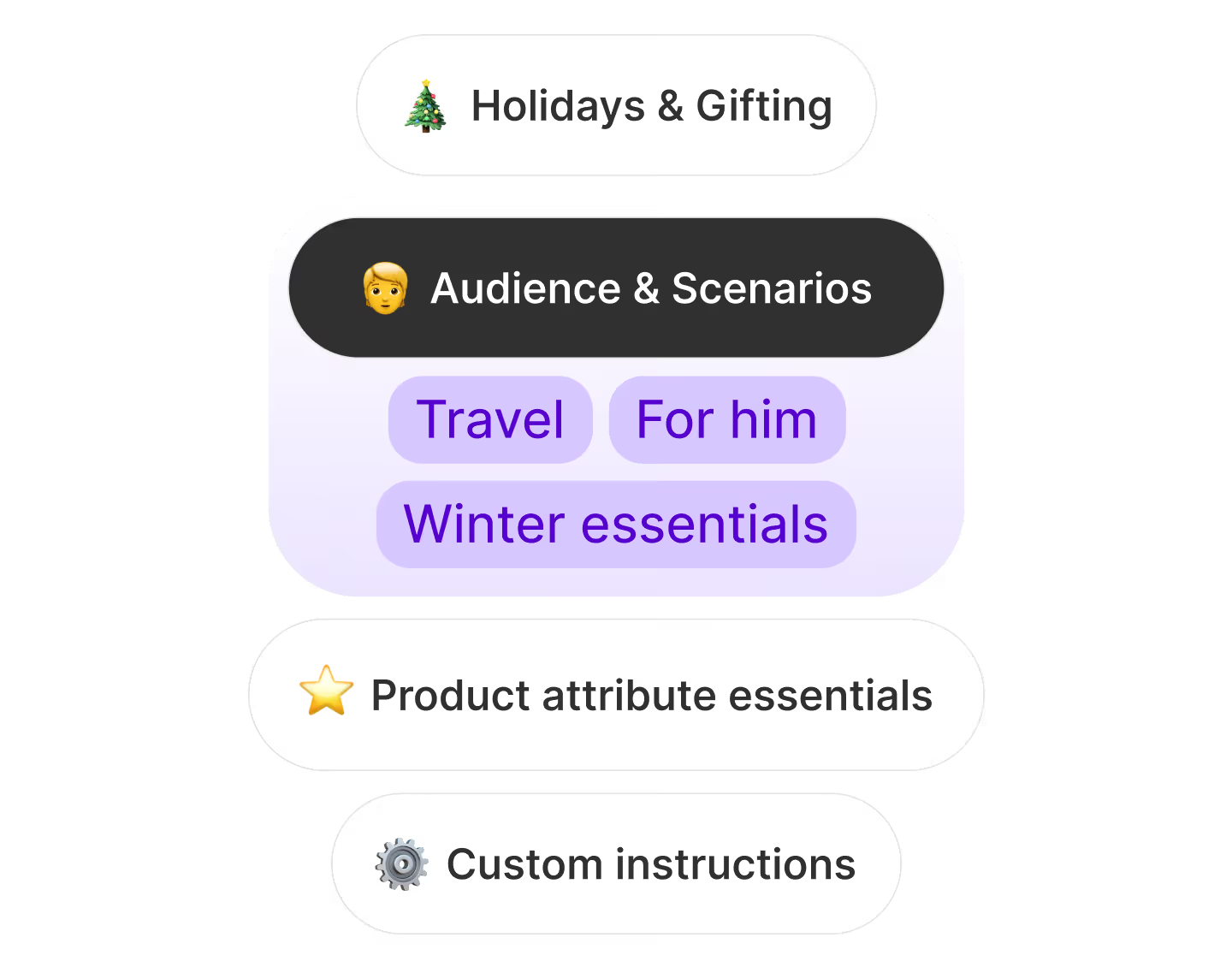
We suggest tags by analyzing your product title, descriptions, variants, etc., and identifying highly relevant keywords. You have full control on which attribute field our AI should focus on.

2. AI image tags
Instantly add descriptive tags based on what the Al sees in your product photos. Use custom instructions for even more control.
How does FilterTag calculate usage?
icon image
Your monthly usage is the total number of tags added + tags removed across customers and products. Usage resets on the 1st of each month at 00:00 UTC.

Example
Day 1- Customer tagging task tags 1,000 VIP customers (1,000 usage)
Day2- Task automatically adds 30 VIP tags and removes 20 tags (50 usage)
Product - You add 10 tags and remove 3 tags from a product (12 usage)
Total: 1,062 usage

You have full control. Pause or remove tasks at any time—no further usage accrues while paused. Upgrade your plan whenever you need a higher monthly limit.
What happens if I reach my monthly limit?
icon image
If you hit your usage limit, your tagging tasks will pause temporarily and automatically resume once new usage becomes available. To keep tagging without interruption, you can upgrade your plan for additional tags or wait until your usage resets on the 1st of the month.
How to remove customer tags completely?
icon image
When your task is active in FilterTag, tags are automatically removed from customers who no longer match your filters. However, if you want to completely remove specific tags applied by FilterTag from your store, follow these simple steps:
  1. Pause or remove the task in FilterTag to stop it from reapplying tags.
  2. In your Shopify Admin, go to “Customers”.
  3. Select “All customers”, then click the Options button (top right) and choose “Remove tags”.
  4. Search for the tag you want to remove and confirm the action.
Need a filter we don’t have?
icon image
Our support team is here to help with custom scenarios—just request one here!

Have more questions?

Please send us an email to support@tresl.co. We'll be happy to answer any questions.